User Research, UX Design, UI Design & Branding
Elementary App.
The project brief was to educate university students about the periodic table. A chemistry student told me about an existing app that they found useful for class. So I created the Elementary App revising content and redesigning the user interface for improved usability.

User Research
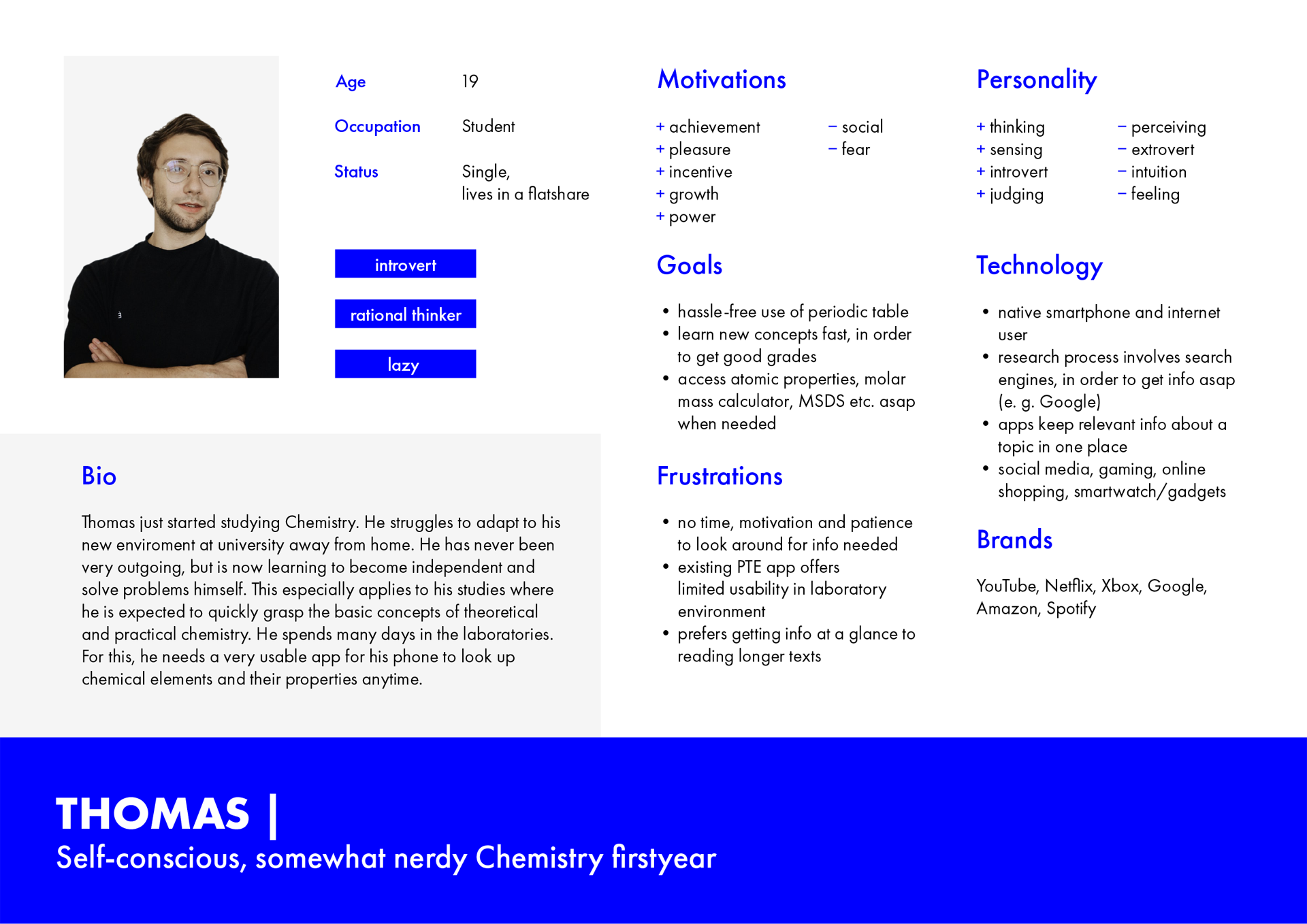
I conducted some basic user research in interviewing the chemistry student, so that I could get an idea about their background, and their goals and frustrations where the periodic table of the elements (PTE) is concerned.
I learned that especially first-year students need to look up elements and their properties every other day, in theoretical classes, as well as practical classes in the laboratory. Students are required to learn basic concepts of theoretical and practical chemistry quickly. In a PTE app, they want the right information accessible at a glance, as they have no time, motivation and patience to look around for it, let alone read longer text.
The persona of a chemistry student below helped me to design the Elementary App towards the characteristics, context and needs of the target audience.
Problem
chemistry students use the existing Merck PTE app for class mainly to look up elements and their properties and for its functionality to calculate the molar mass of chemical compounds. Thus, the most important information the Merck PTE app contains are an overview of the PTE, an elements search, single element information pages, options for filtering the PTE by different element properties, and a molar mass calculator.
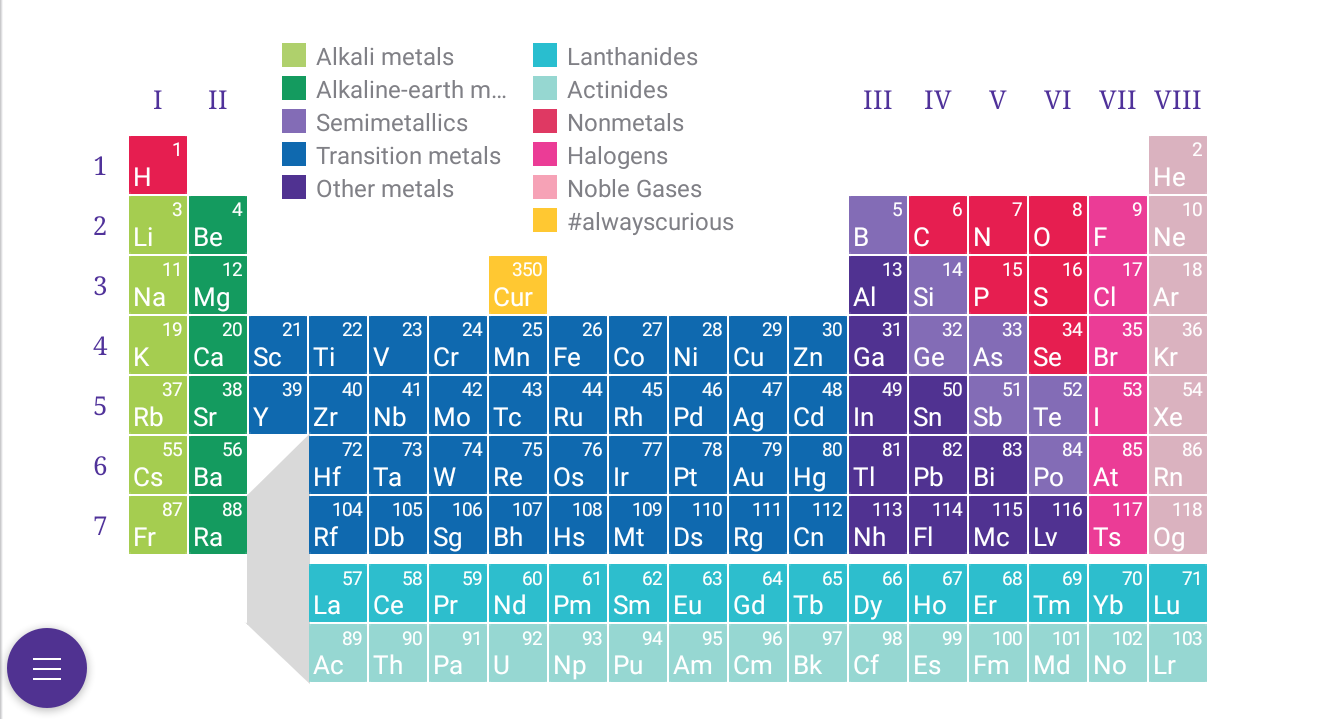
However, during user research, it became apparent that the interface should be improved for usability in the laboratory. To navigate within the app, there are quite a few taps necessary. Plus, it is difficult to tap the elements in the PTE, as the squares are just too small. So I revised the app contents according to the students' needs, and structured and redesigned it, so that important information can be found and identified in an instant.
1. Search for element
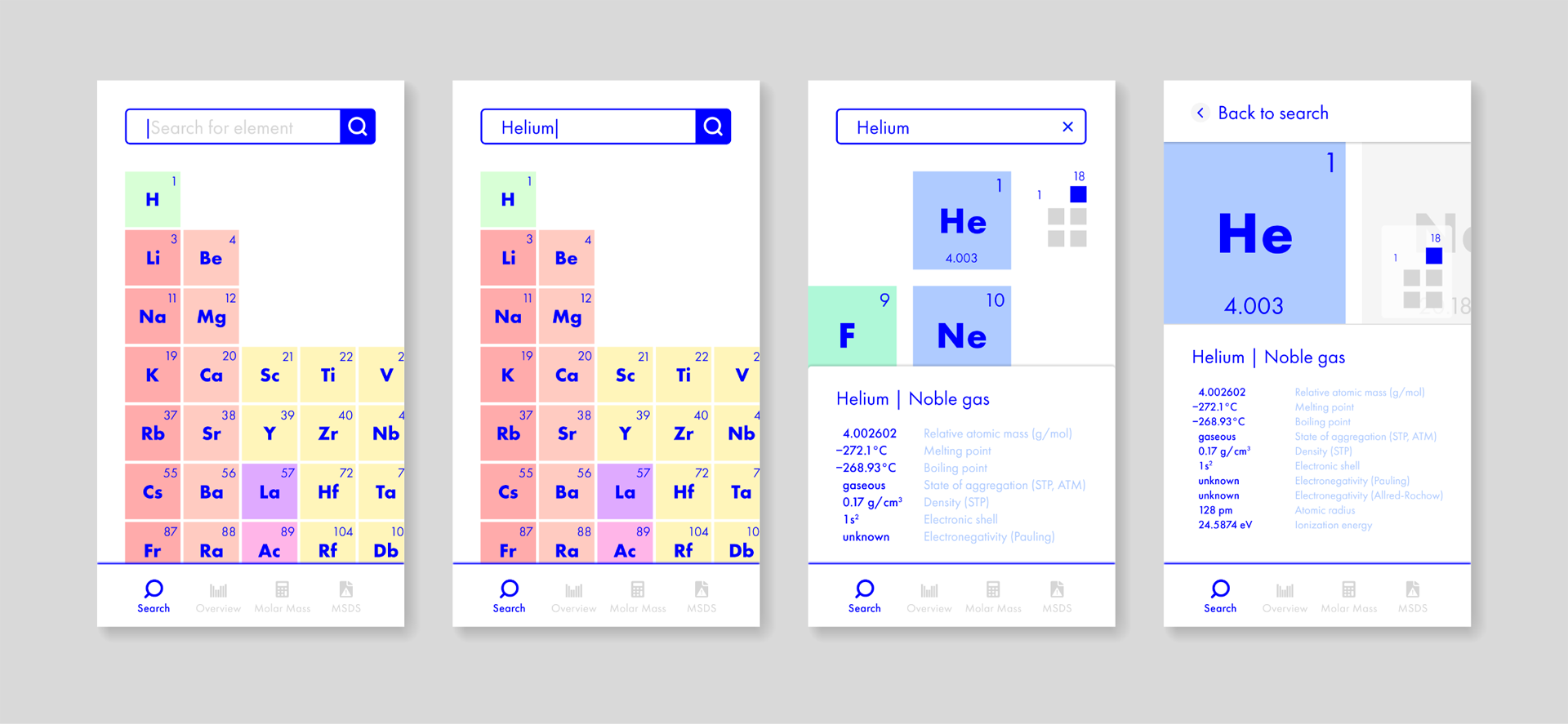
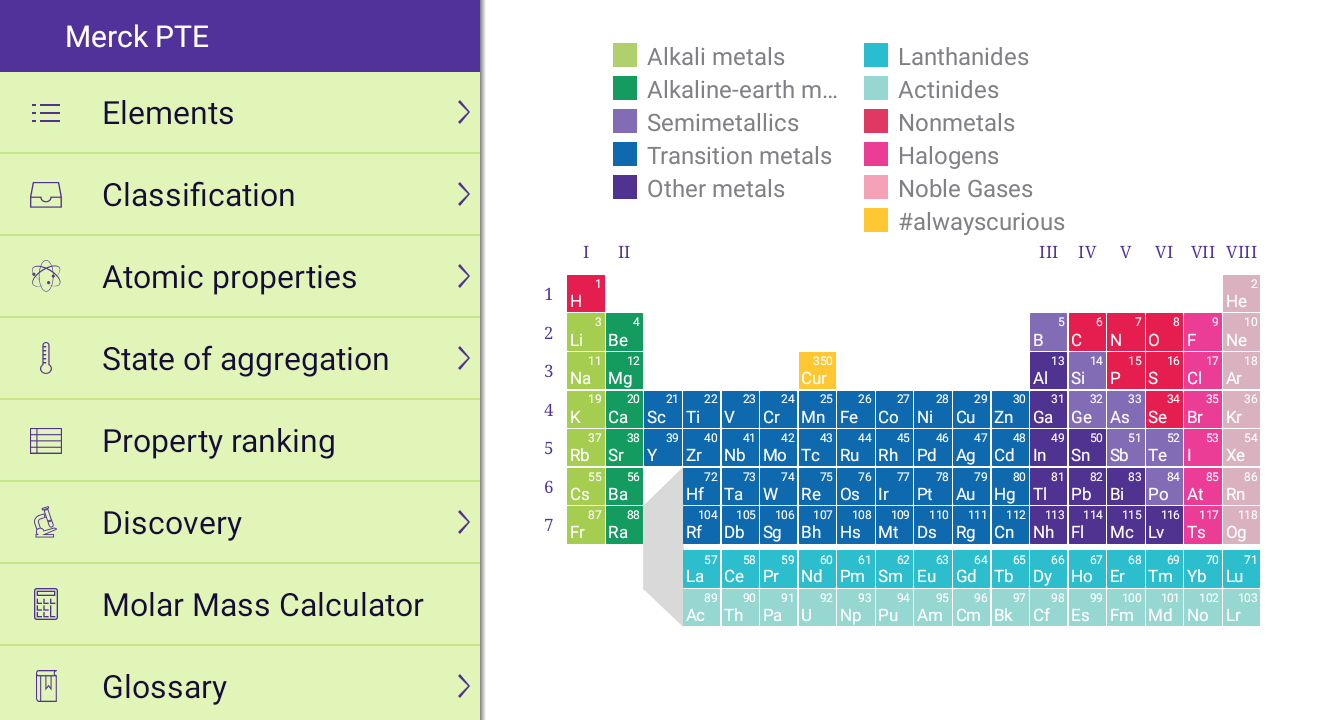
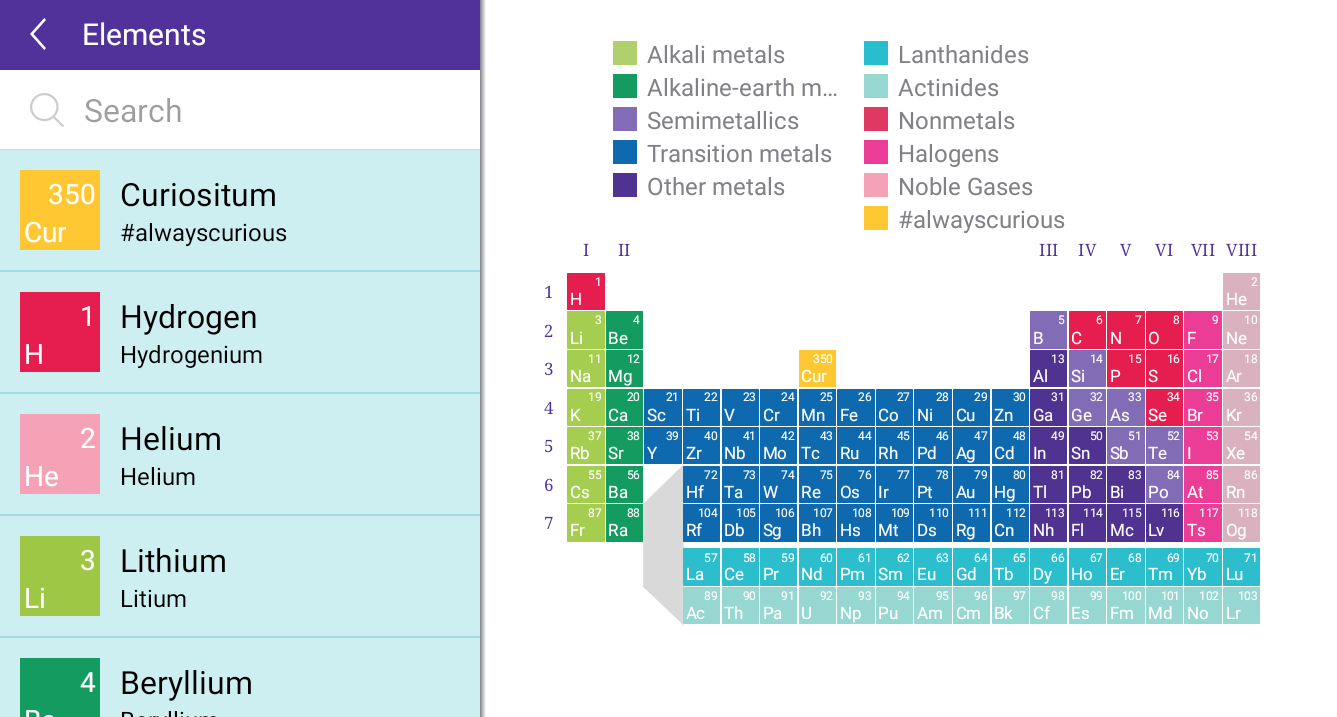
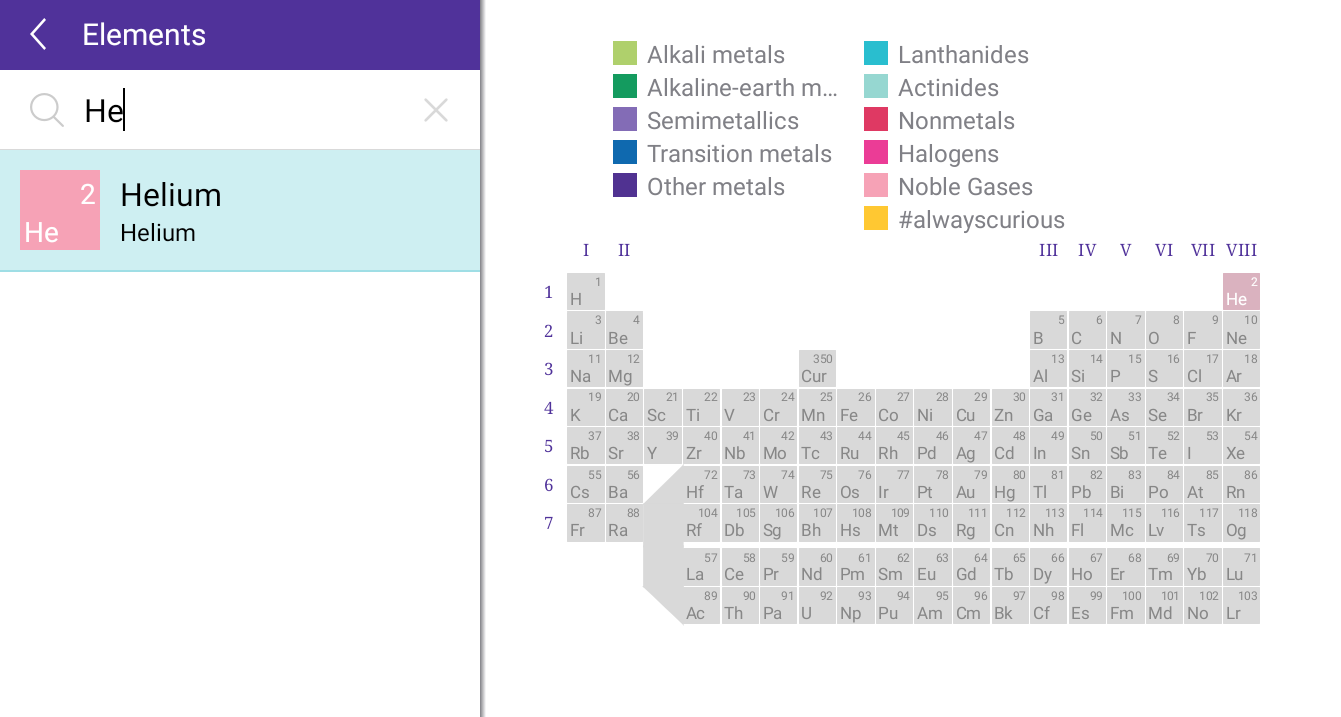
To look up an element and its properties, users can either try tapping the small element square in the PTE or use the search which is hidden in the Elements tab of the navigation. Considering that the search is an intuitive way to instantly get relevant information about the element, the user flow to access this functionality is counter-intuitive.
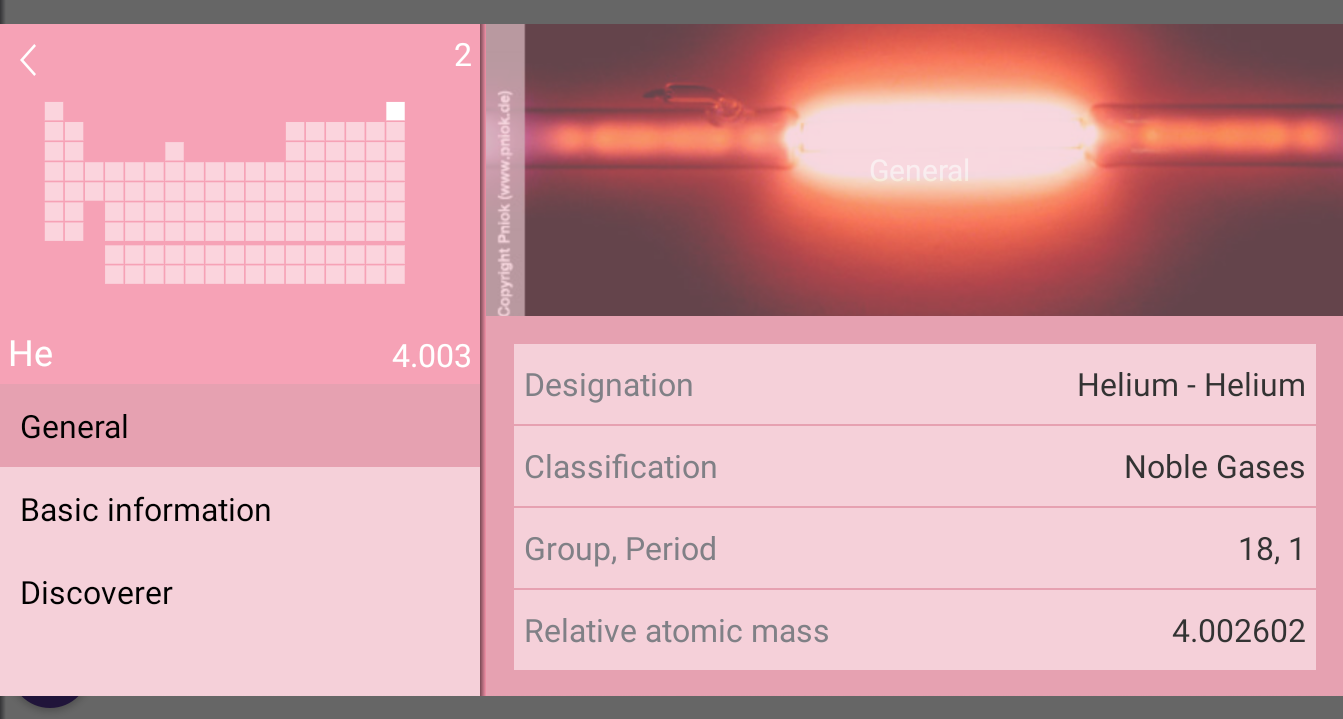
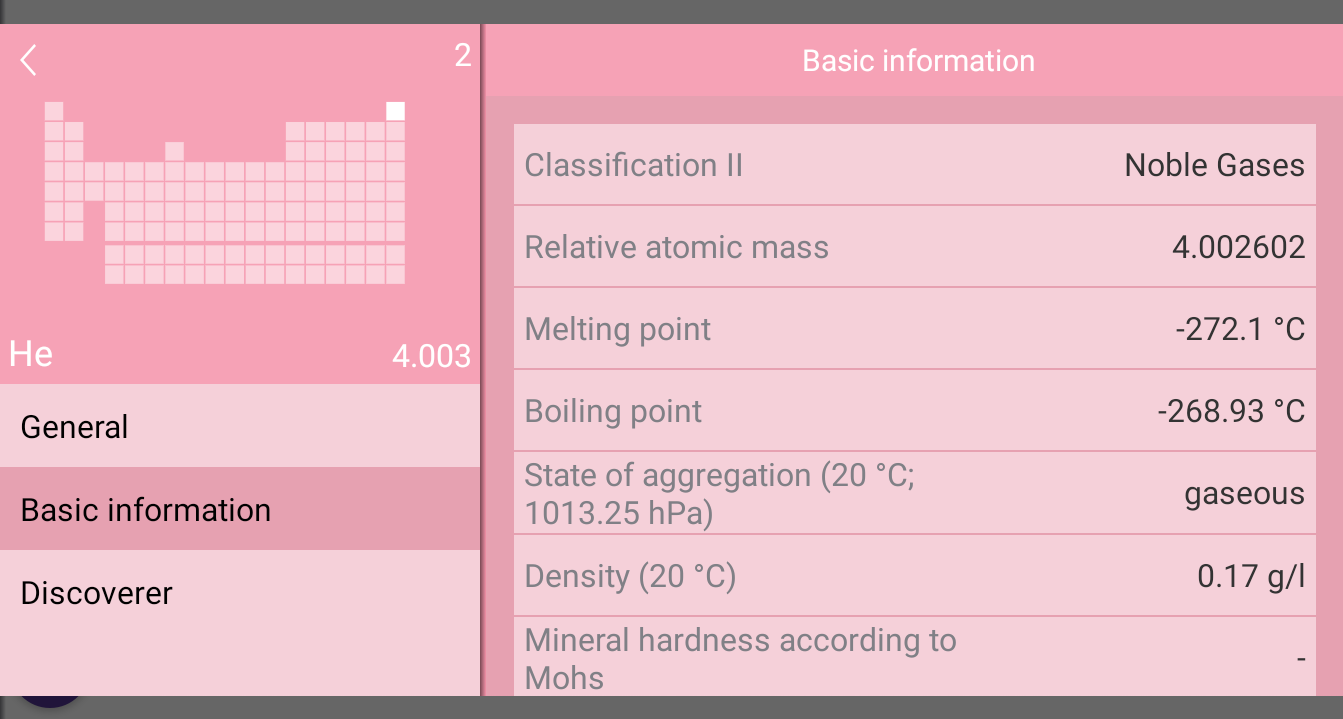
The element page provides an illustration of the element's location in the PTE and a range of data, most of which can be found only in the second tab on the page. The page is not structured in such a way that chemistry students can see at a glance the most important data (according to user research): atomic mass, melting/boiling point, state of aggregation, density, electronic shell and electronegativity (Pauling).
2. Filter elements by property
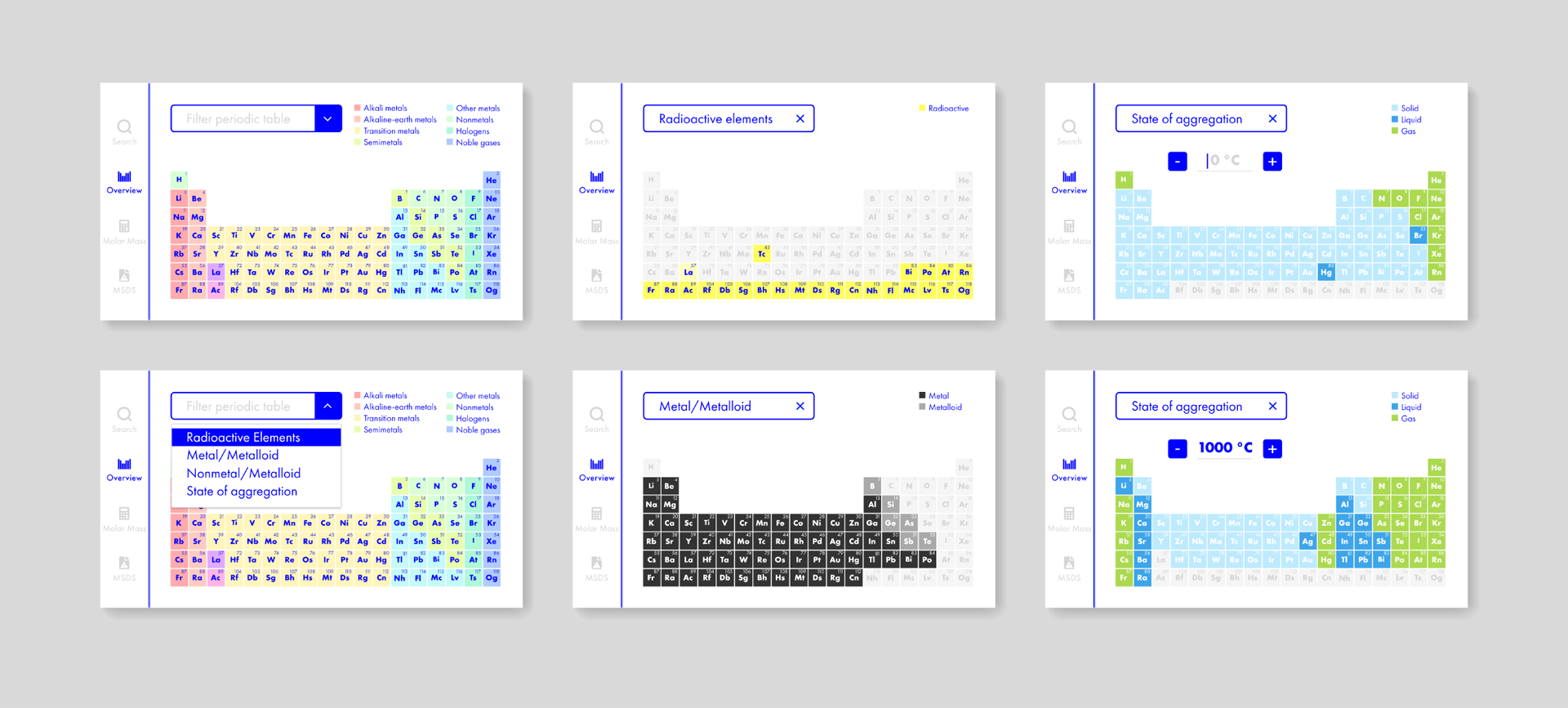
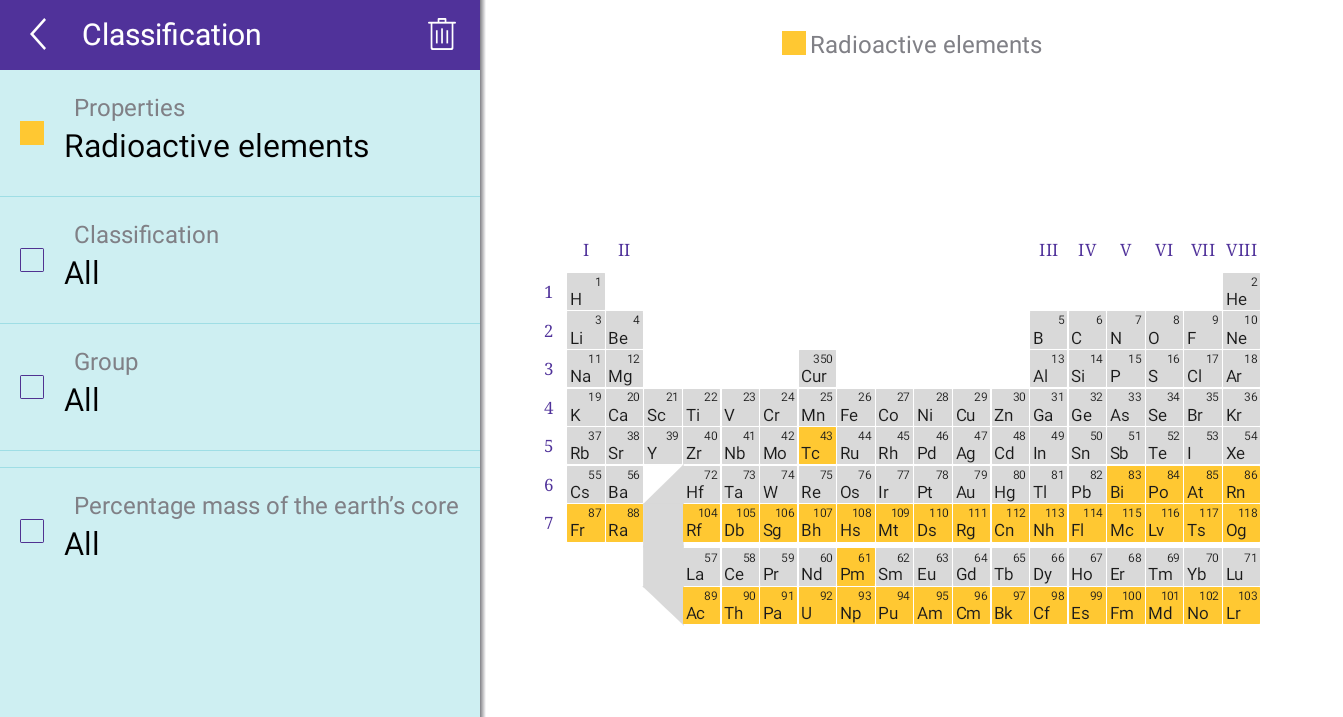
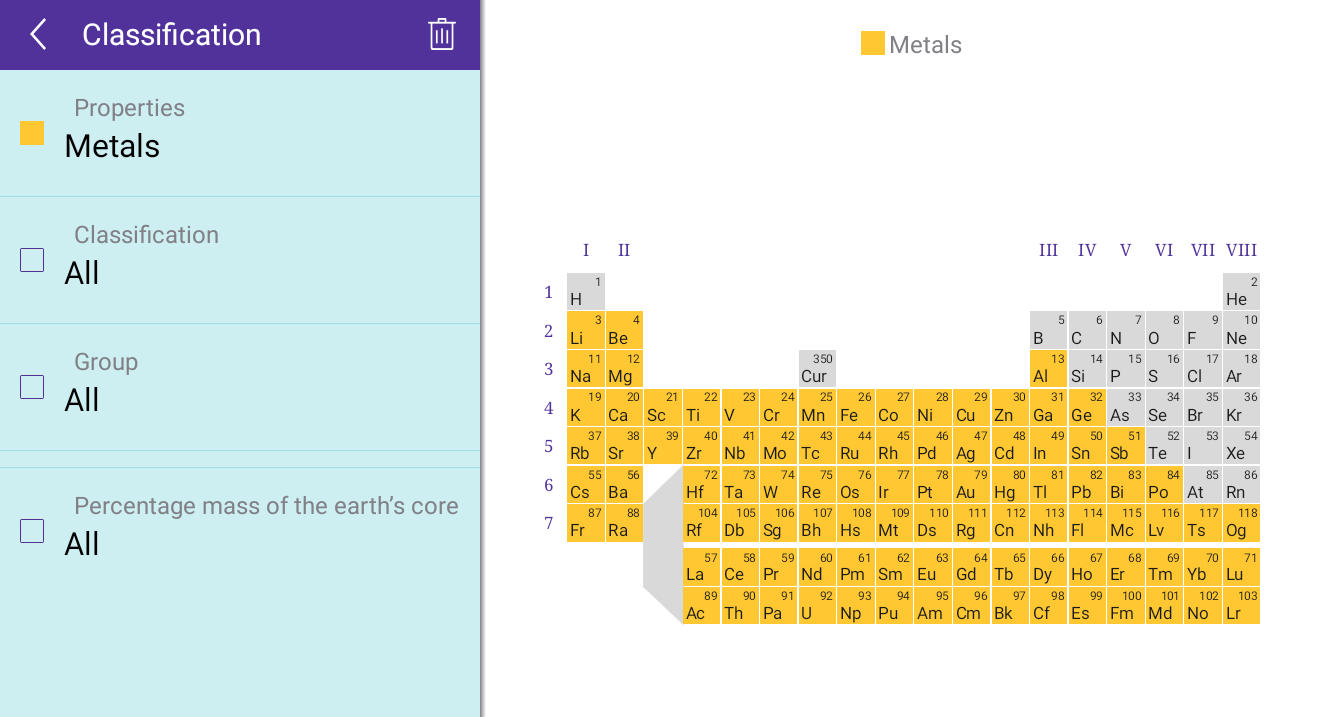
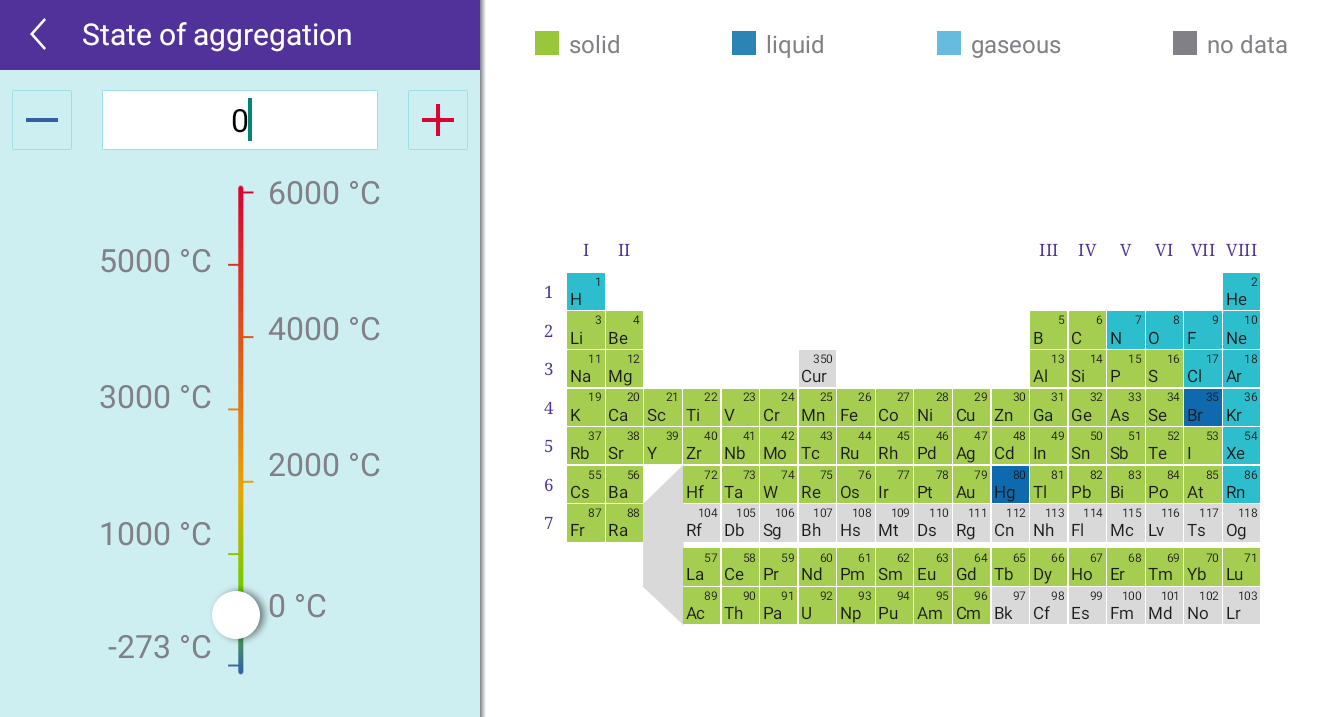
The Merck PTE app offers an impressive number of filter options for the PTE, although it is not obvious to the user where in the navigation to find them. In the Classification tab, the PTE can be filtered and displayed by element properties, e. g. radioactive elements, metals/non-metals or electronegativity, by classification, by group and by percentage mass of the earth's core. In a separate tab, there is a filter option by state of aggregation (depending on temperature).
The number of filter options provided should be reduced to what is really needed by the students. To avoid confusion about how to access them, they could also be placed in the same navigation tab.
3. Calculate molar mass
of compound
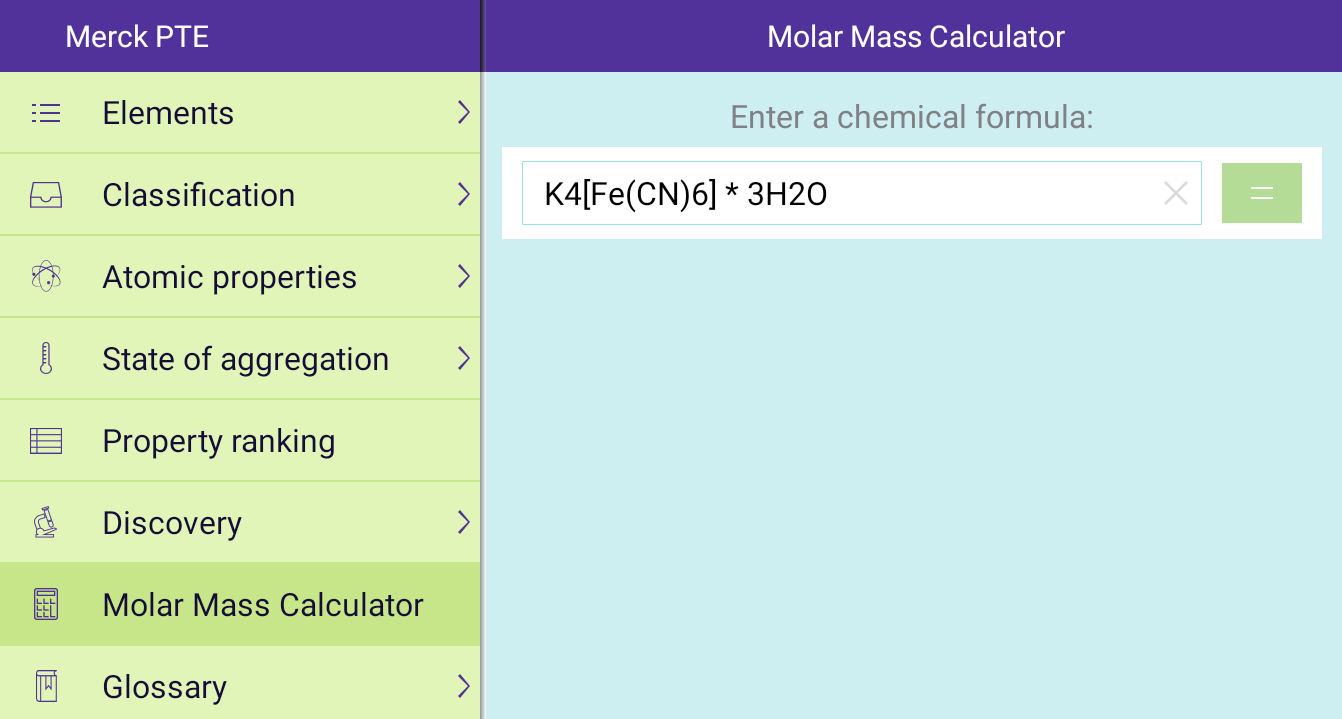
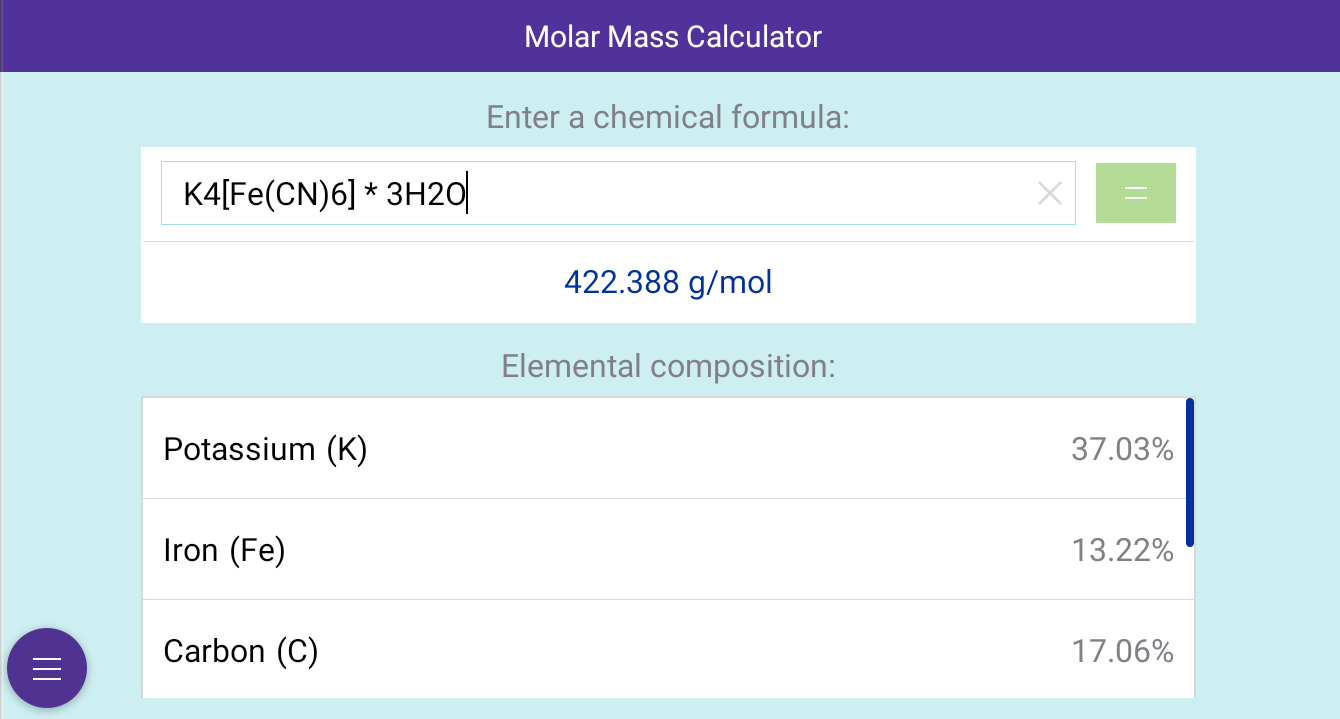
In the interview with the chemistry student, I learned that they also use the existing PTE app to quickly calculate the molar mass of substances. In the corresponding tab, it lets them type in the formula of a chemical compound.
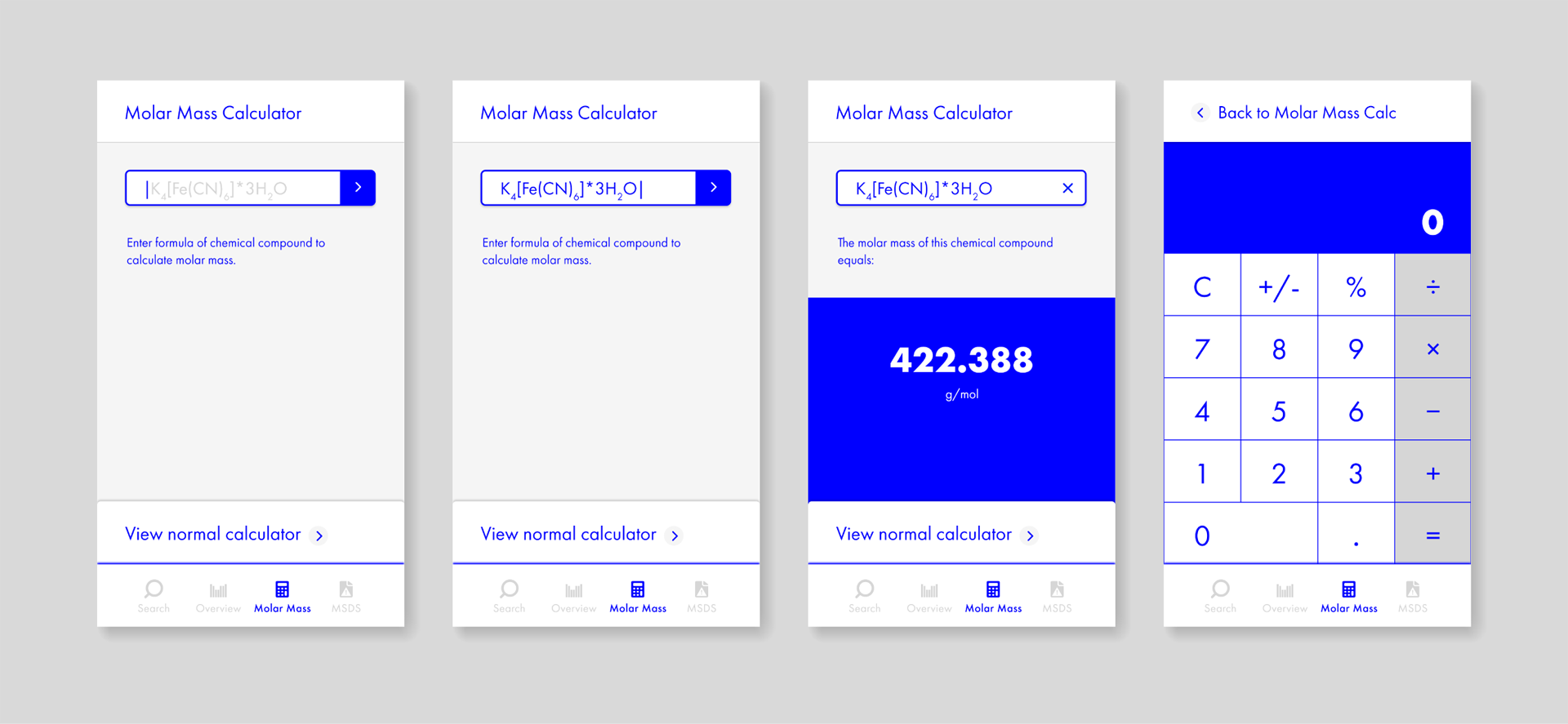
The molar mass calculator should allow for the name of the compound as well. The info box with the elemental composition in percent, which is displayed in addition to the result of the calculation, is considered unnecessary. Another idea is to add a normal calculator for quick calculations to shorten the user flow of having to switch to a different app and back.
4. Access Material Safety
Data Sheets
Working in the laboratory, prior to an experiment, the students have to look up the Material Safety Data Sheets (MSDS) of the substances used. For this, the service commonly used in Germany is the GESTIS Substance Database.
It would be useful to also have a section in the app where the user could simply search for the MSDS of a material by entering its name or chemical formula. However, as a MSDS informs about material hazards and protection, its content and structure is regulated by law. Most probably, there are also regulations when it comes to actually implementing a common MSDS database in a third party app.
Process
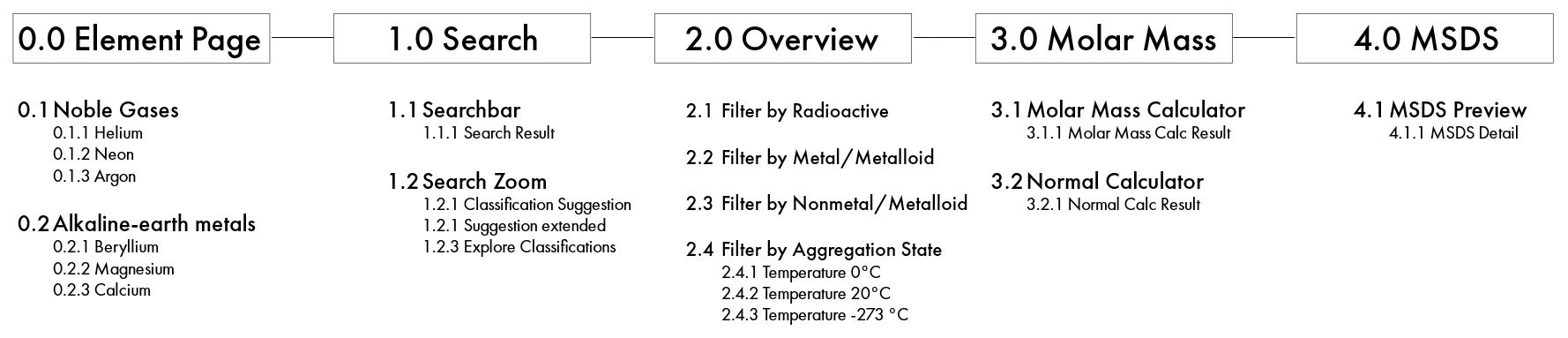
After researching students' use of the existing PTE app, I moved on to laying out the content and designing the interface of my Elementary App. Within the app, there are four main functionalities: 1. Element search, 2. Overview of the PTE and filter options, 3. Molar mass calculator for compounds and 4. MSDS. The individual element pages don't show up in the navigation menu. They are accessed primarily by searching for an element or secondarily by tapping the corresponding element square in the PTE on the search or PTE overview/filter screens.
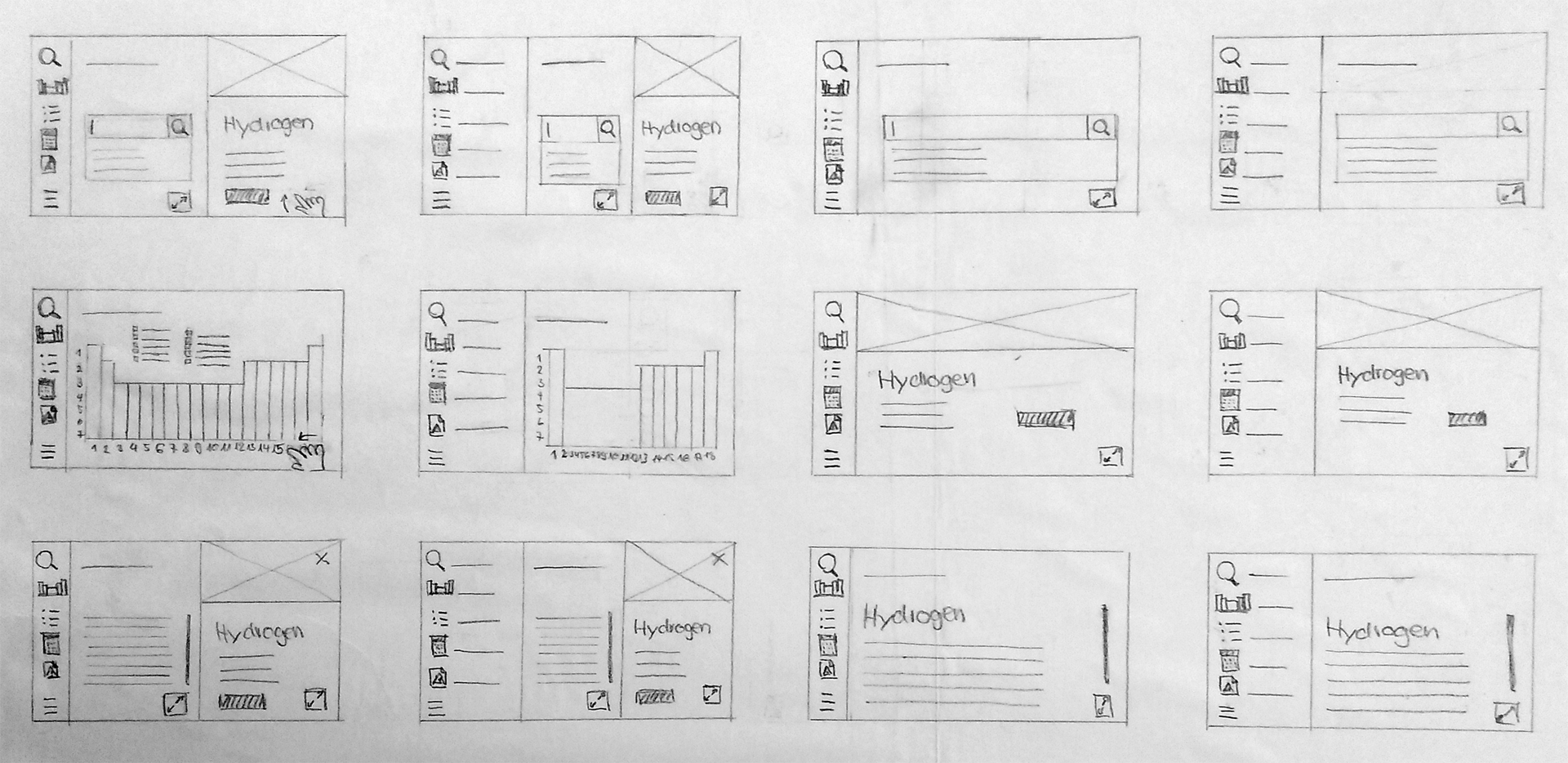
My design process included developing a sitemap, sketching out first screens and refining the user flows before taking care of the details and visually designing the Elementary brand and Hi-Fi app prototype.
1. Sitemap
2. Early Sketches
3. User Flows
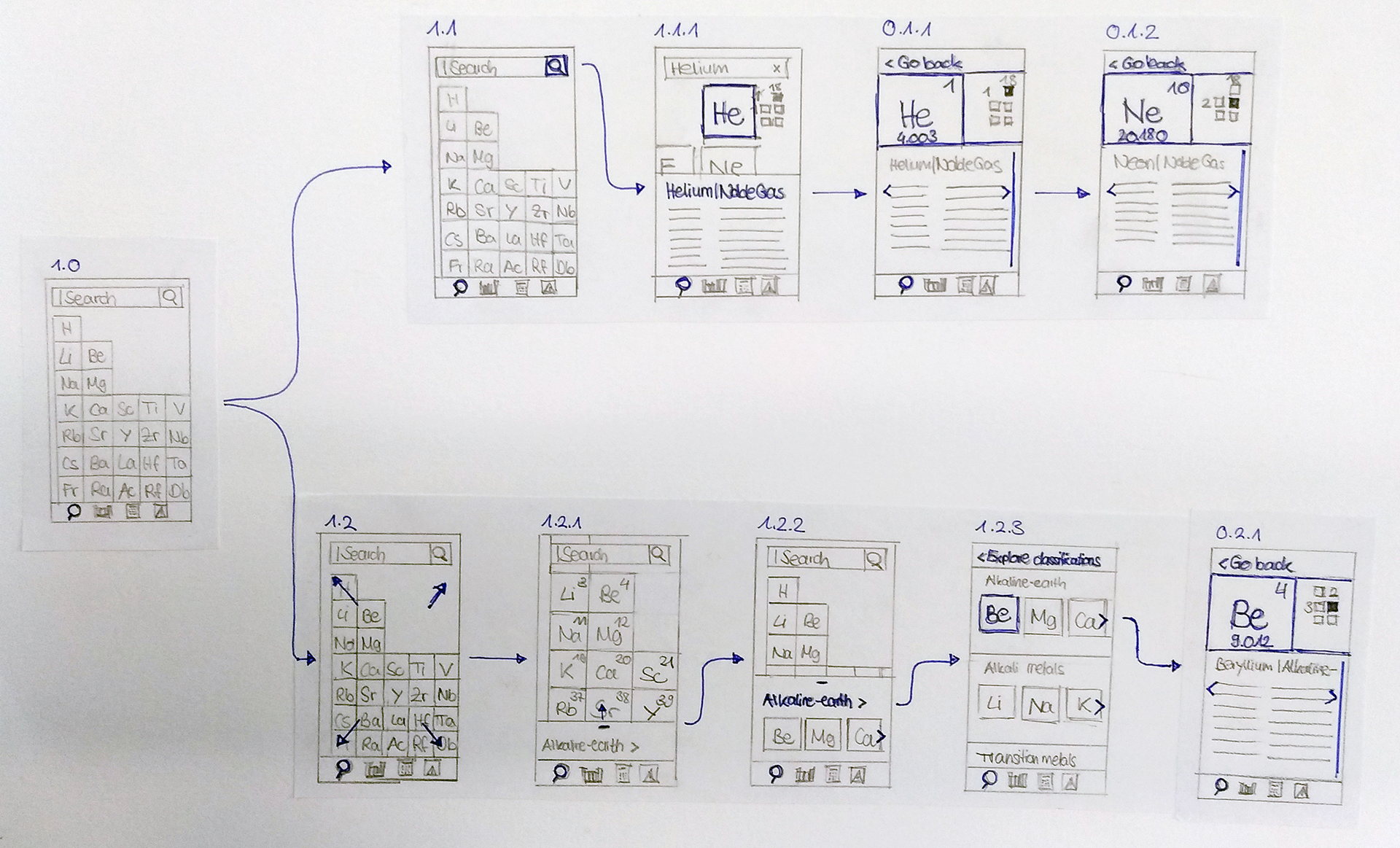
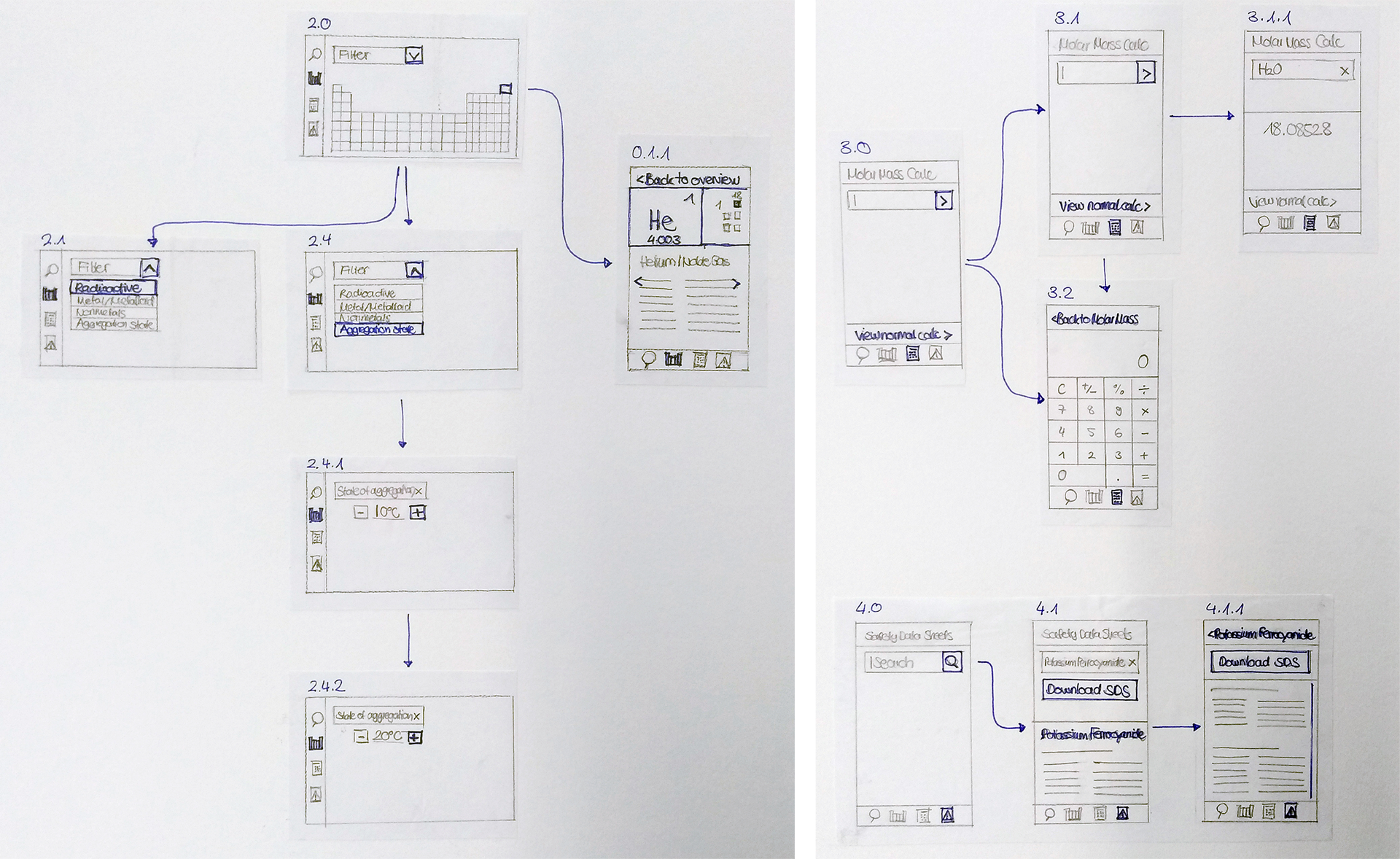
Users can access element data in an instant from the search screen, where, by default, a part of the PTE is visible. When typing in a query into the search bar, the PTE zooms in and the element info box with the most important data is displayed. An illustration on the top right places the element at its location in the PTE. When the element square or info box is tapped, the complete element page opens up.
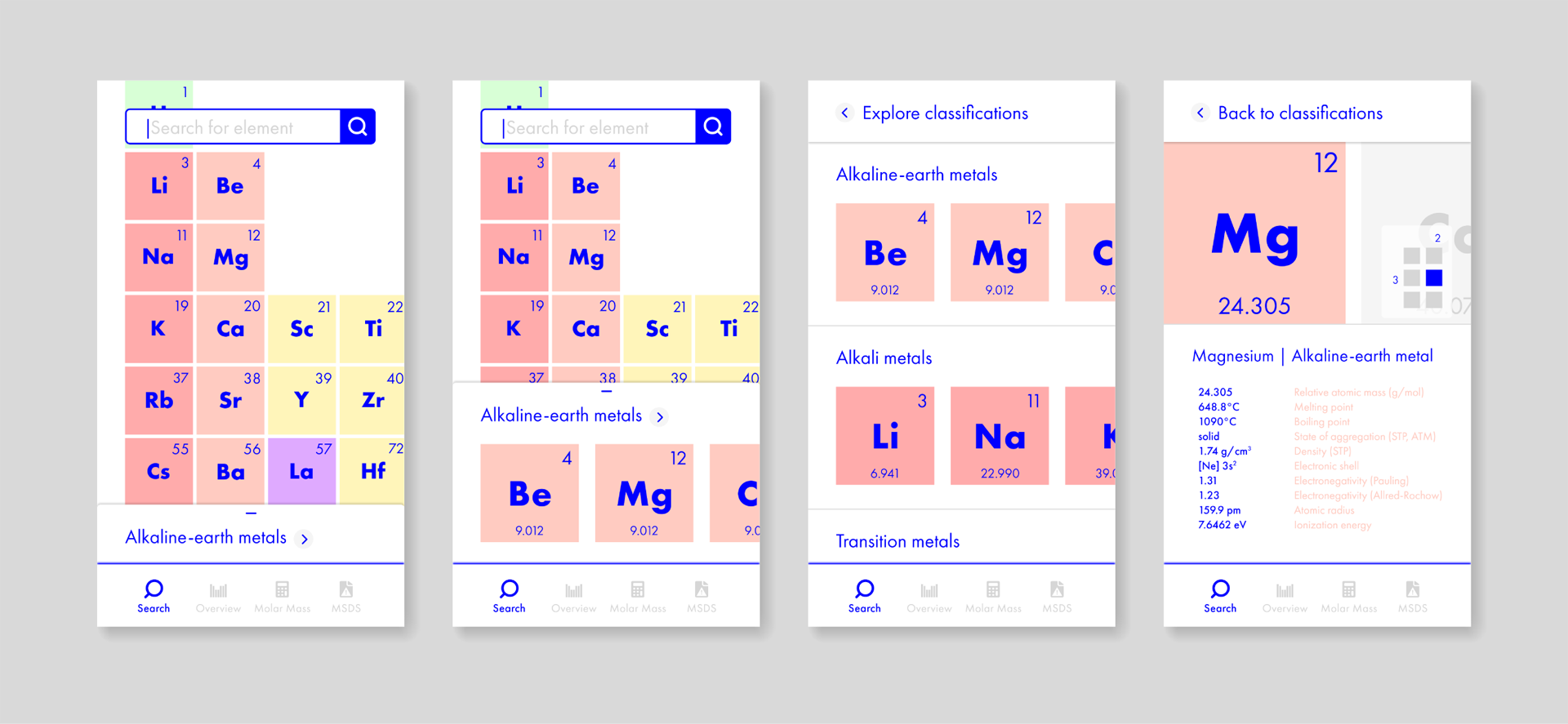
When zooming in manually instead of using the element search, the info box contains contextual information/suggestions. As elements get closer, it shows their classification. Users can slide through the elements of the same classification or navigate to a screen where they can explore all elements grouped by their classification. From both views, users can tap an element square to go to the corresponding element page.
On the overview screen of the whole PTE, users can highlight the radioactive, metal or non-metal elements by applying the corresponding filter. When filtering the PTE by state of aggregation, users are asked to set a temperature as well. Turning it up or down changes the highlighting of elements according to the change in their state of aggregation.
For calculating the molar mass of a chemical compound, users can enter the chemical formula into the input field. After hitting the button to the right, the screen transforms to showing the result below. To switch to the normal calculator, users can tap the button at the bottom.
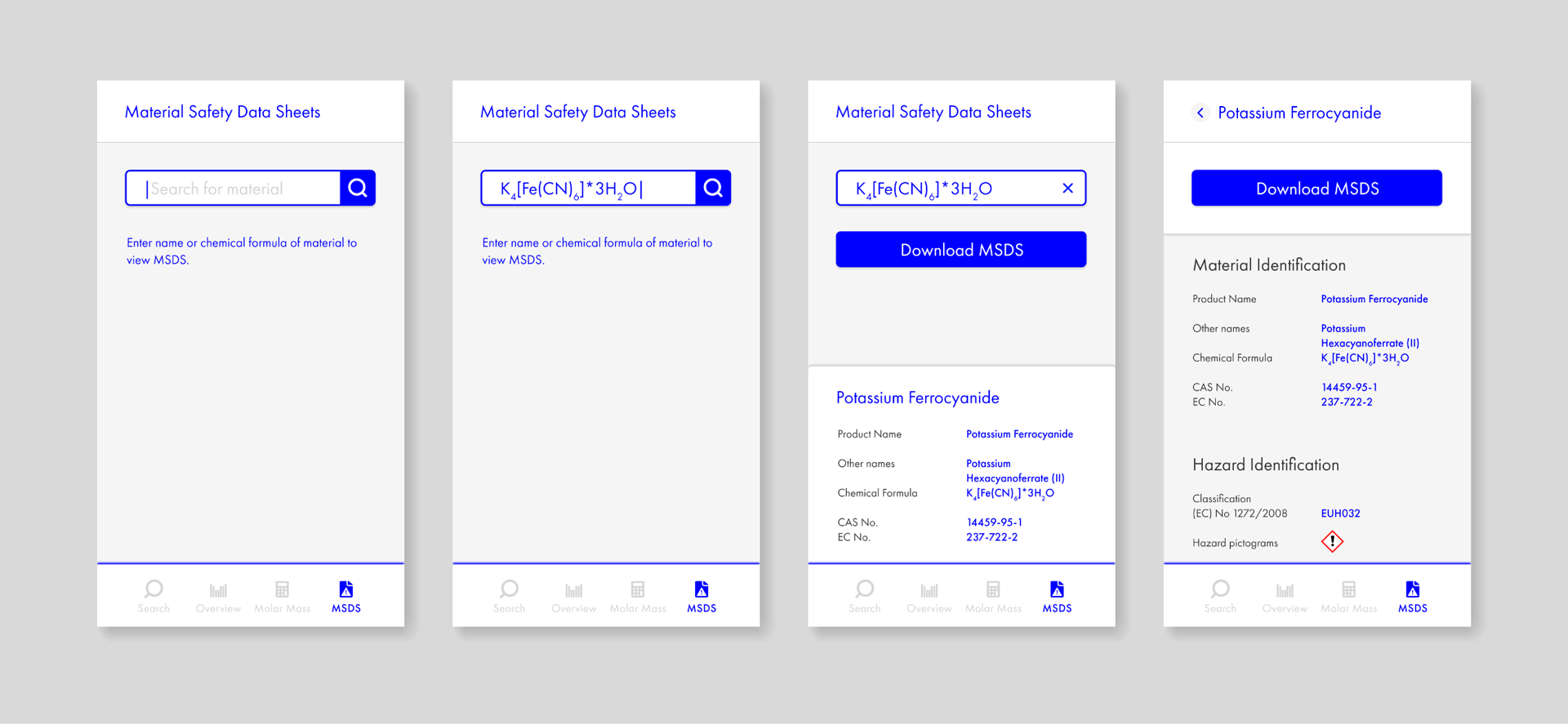
The MSDS of a material can be retrieved by searching for its name or formula. The result screen offers a download button prominently positioned underneath the search bar. For safety reasons, users are directed towards downloading the original copy of the document. Nevertheless, users can also view some MSDS information within the app.
Solution
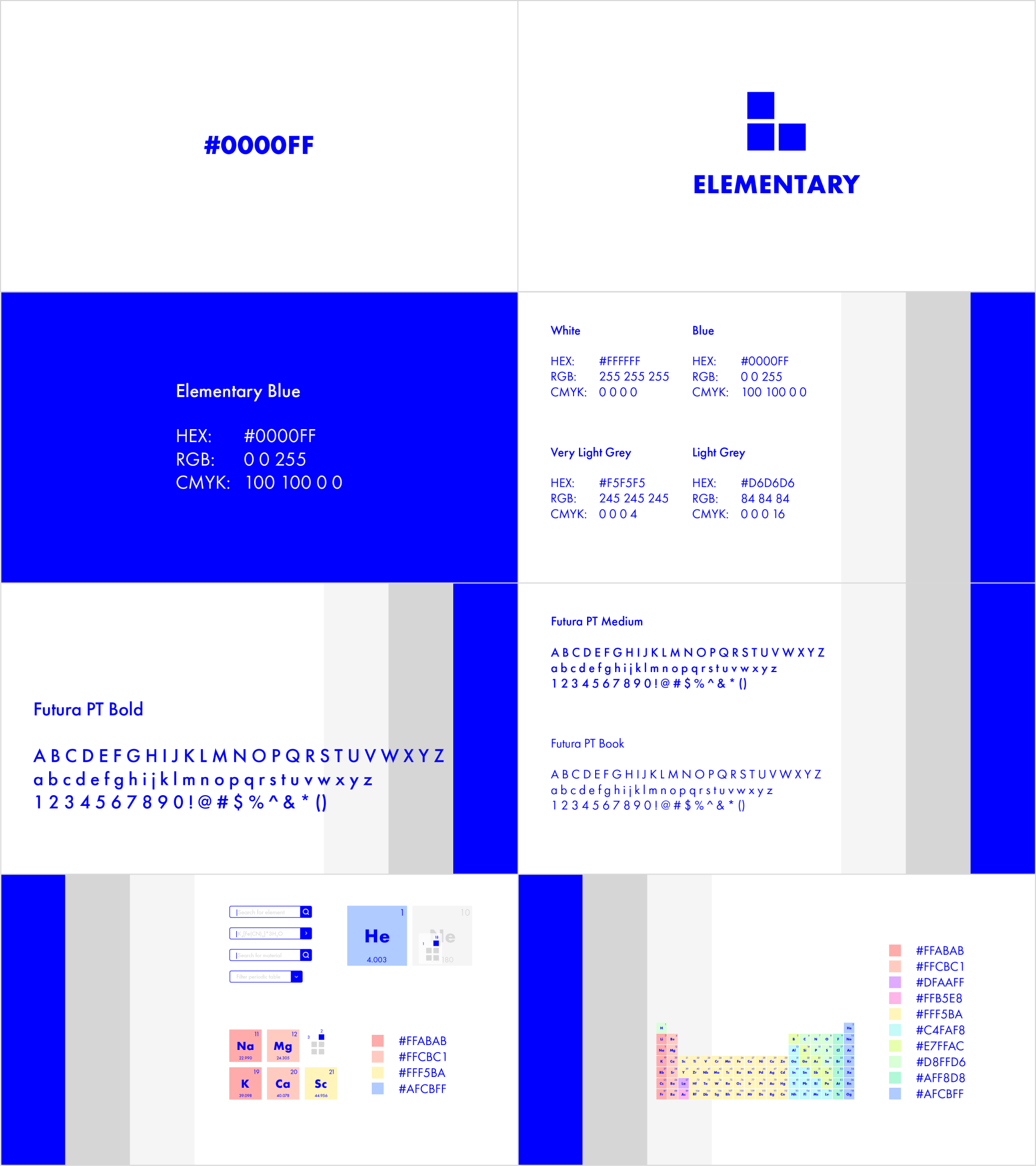
The solution is an Elementary app on elementary chemistry, to be used by bachelor students on a daily basis for class. Accordingly, I named the brand "Elementary", and accommodated for this characteristic in my choice of image and font for the logo. I developed a logo which is dynamic and can be easily animated (for the splash screen of the app). The three blue squares in the logo and the way in which they are arranged in relation to each other are inspired by the PTE. The Hi-Fi prototype of the Elementary app I built in Adobe XD.
1. Branding
2. Hi-Fi prototype